Building 2.1: A DIY ESP32 Companion Robot
A Word About 2.1
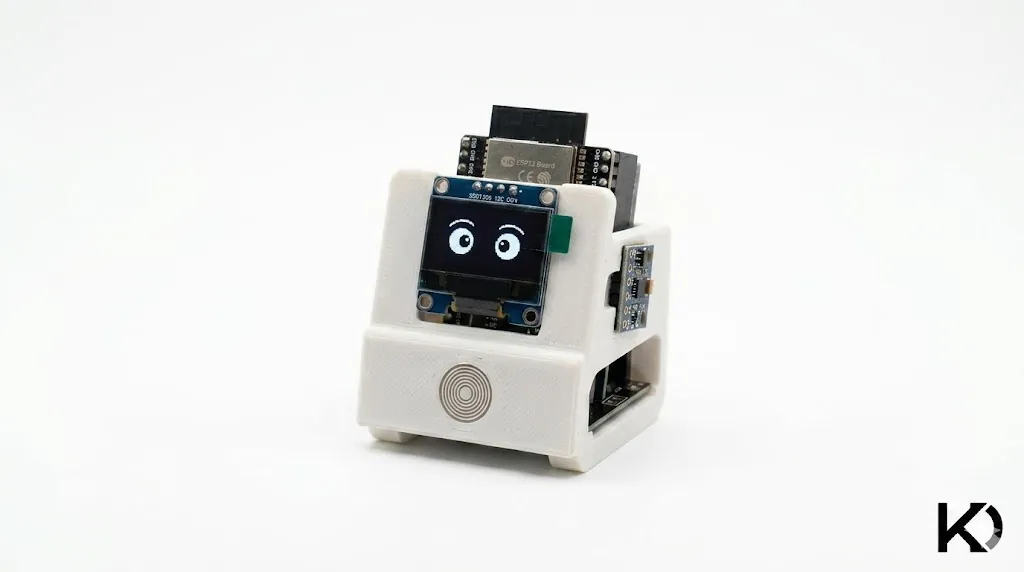
There are lots of companion robots out there with impressive features and latest technologies. As my first ESP32 project I decided to create an DIY companion robot for myself, Because it is realy fun to have one of them with us when we are working alone. This is the prototype of my 2.1. We can improve in many ways.
I created this with very simple and minimal resources that everyone can easily find with very low cost. All the components are available in famouse e-commerce websites for very low prices. Therefor I thins It is very easy to make your own 2.1 without much effort.
Watch the 2.1 Prototype in Action
Required Components
ESP32 Board
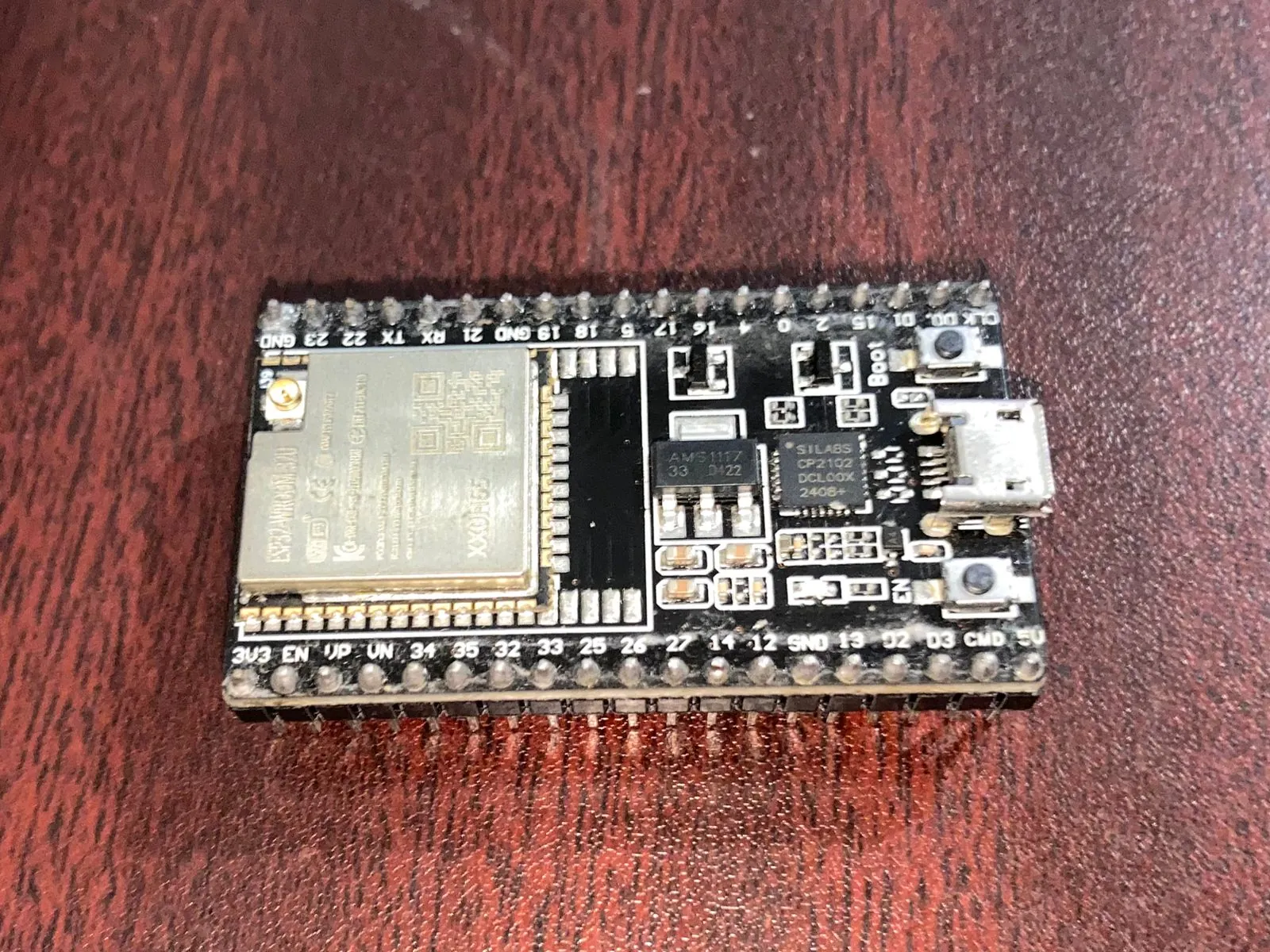
This is the main component that handle all processing tasks and act as the brain of our 2.1. I prefer ESP32 over Arduino uno because this has builtin WIFI, bloototh capabilities and higher memory with higher processing capability.
SSD1306 I2C 128 x 64 OLED Display
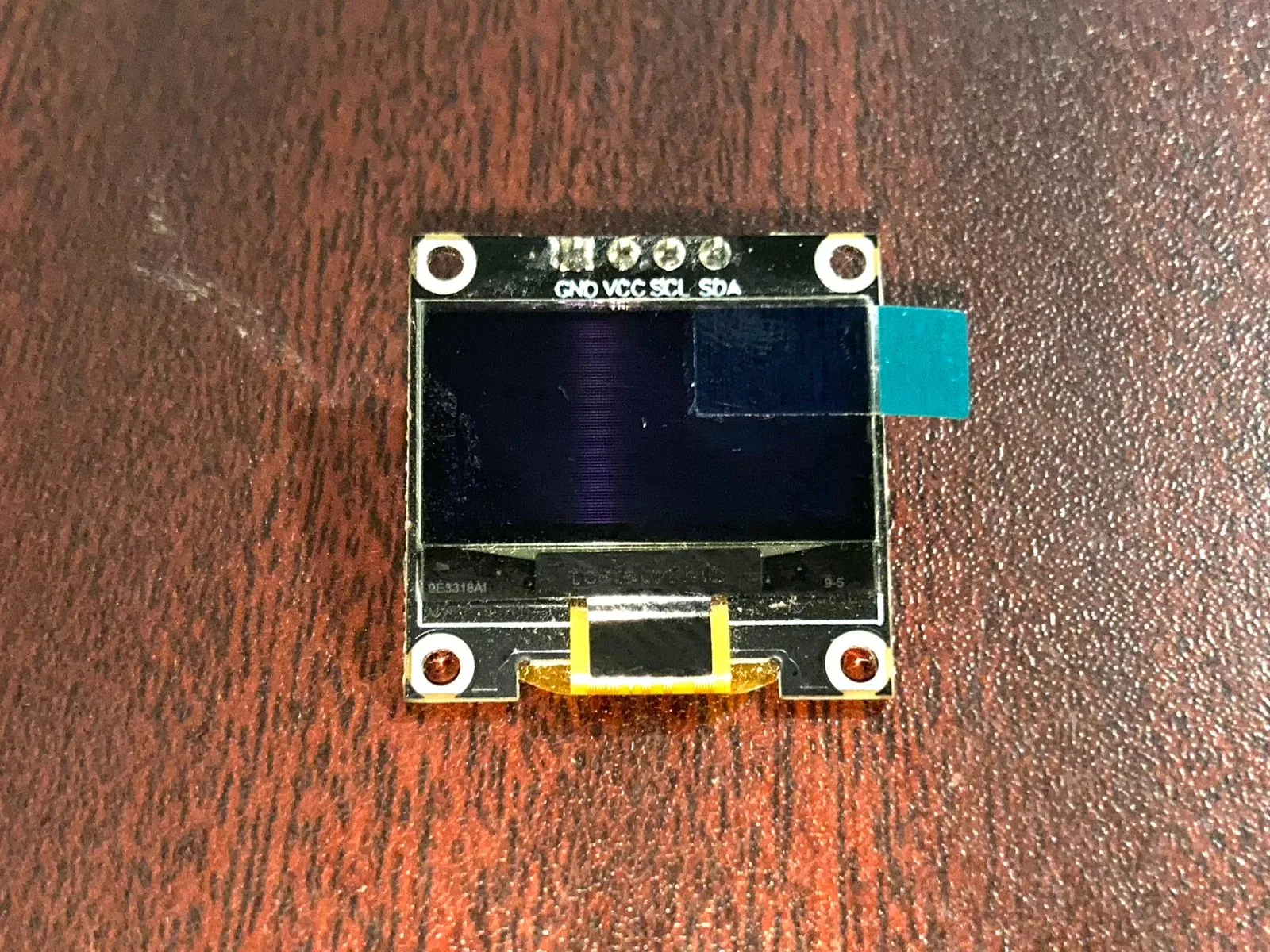
I choose this SSD1306 I2C 128 x 64 OLED display to show our 2.1's eye animations and it's feelings. This display is 128x64 pixel display and it is not a colour display it is a wihte colour only ( some sources says that white colour display is much durable than the blue one- do your own research and confirm by yourself).
MPU6050 6-Axis Motion Tracking Sensor
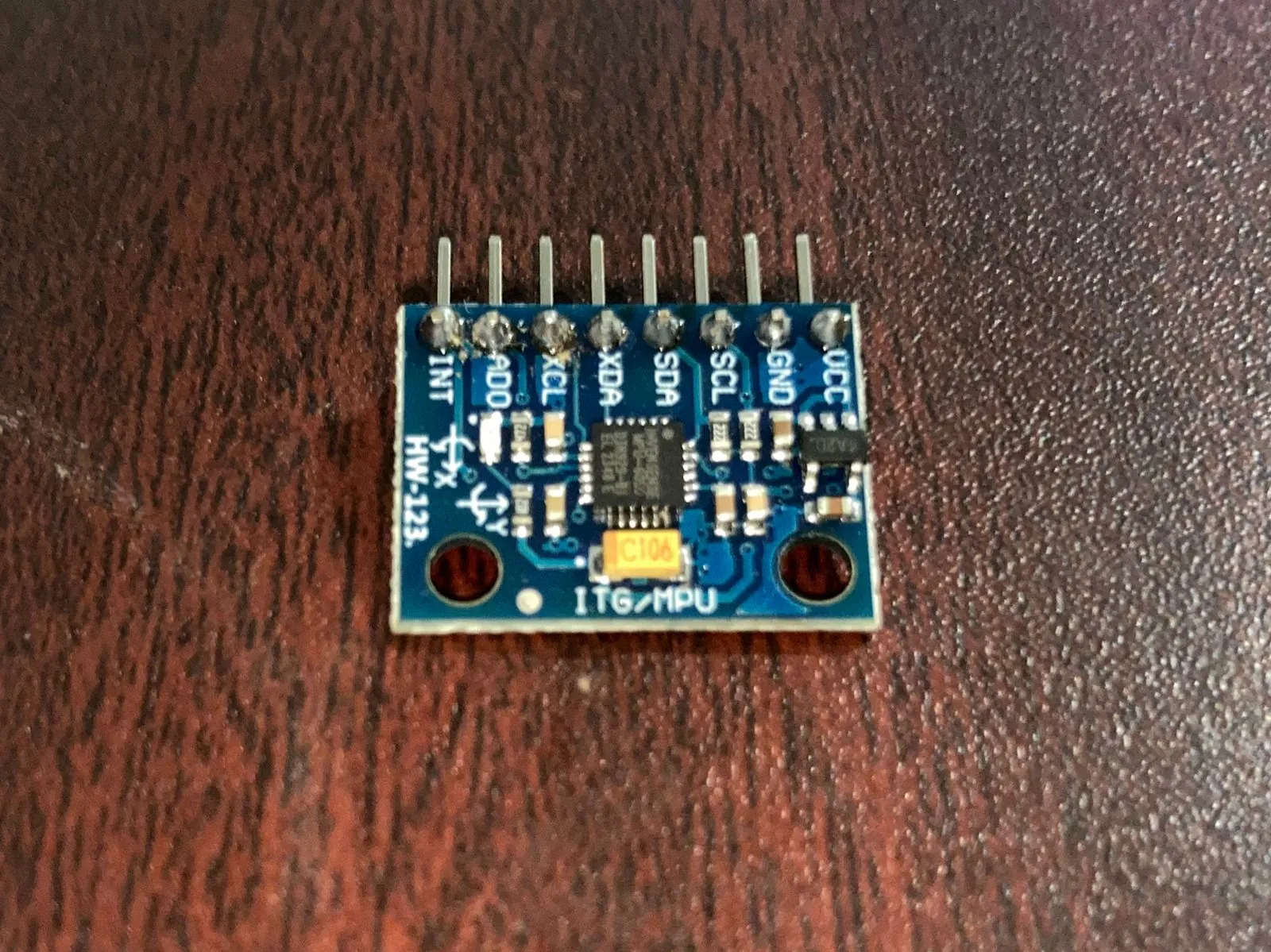
I am using this sensor module to detect 2.1's movements and change it's expressions accordingly. This sensor module includes gyroscope and accelerometer. So it can detect movements and make 2.1 more interactive.
Capacitive Touch Sensor
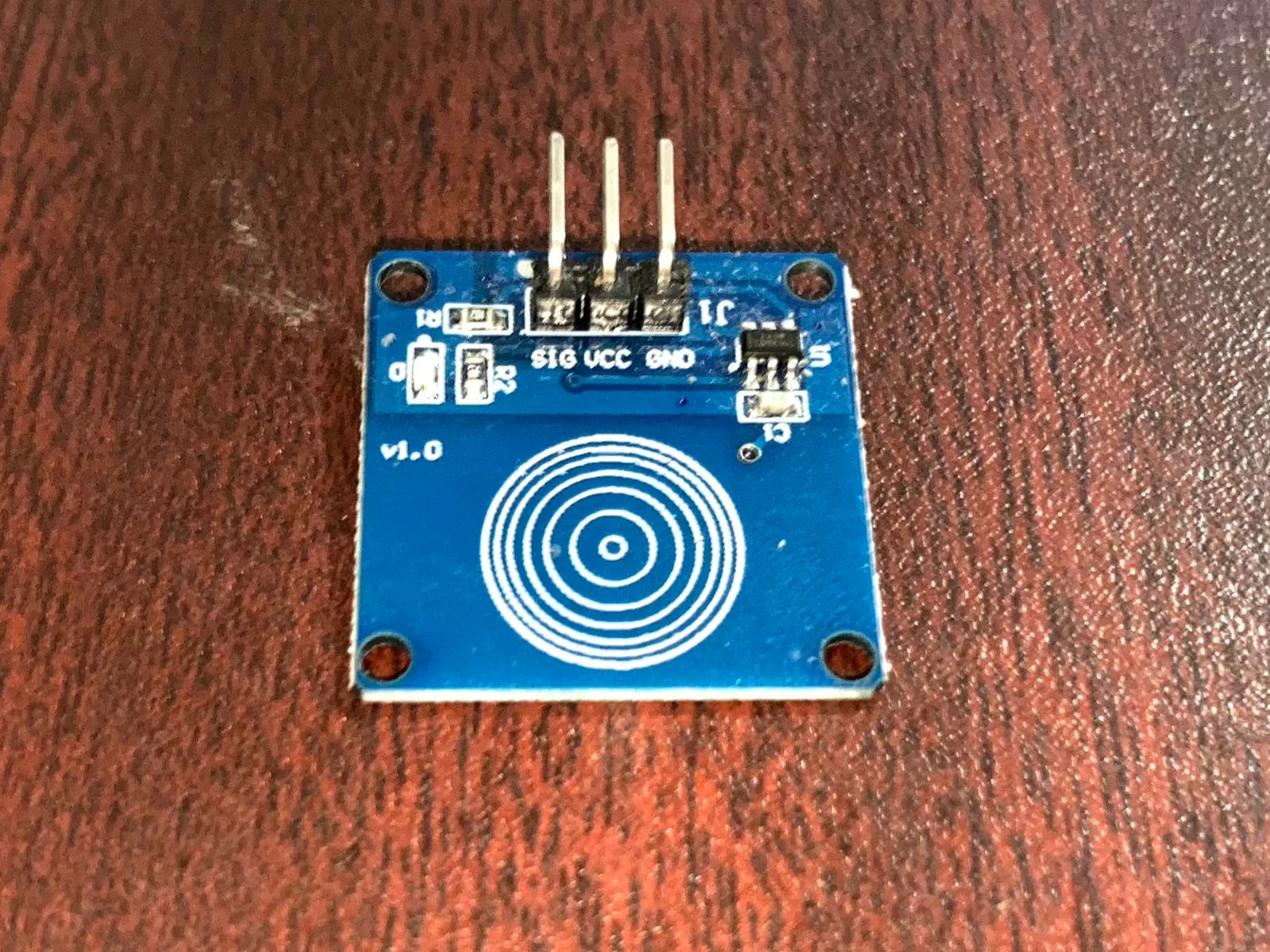
I am using this touch sensor for directly interact with 2.1. We can give different commands by touches with this sensor. It detects touches and we can communicate with our robot easily with it.
How to Setup
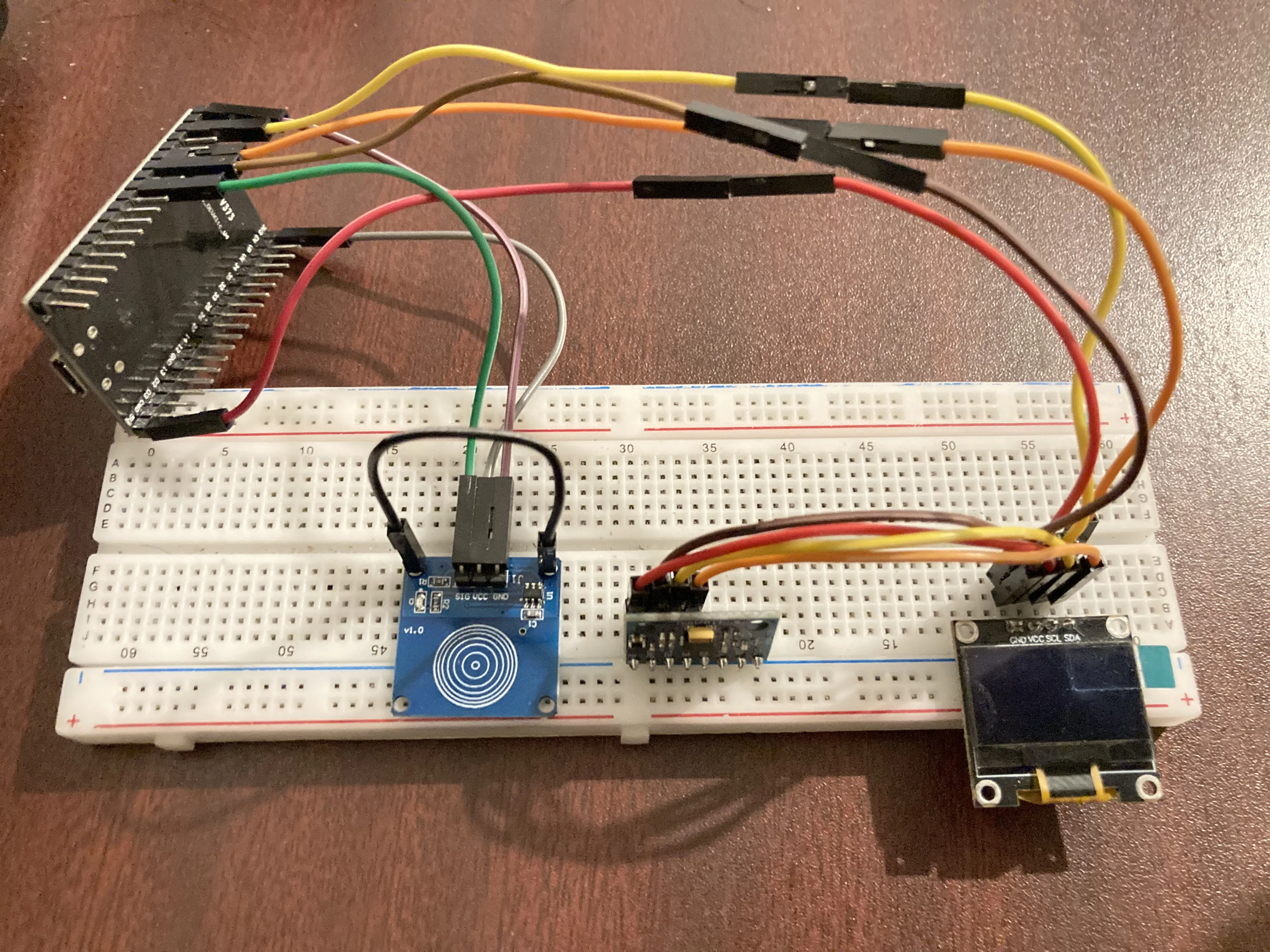
Now we have to interconnect all the components we collected and make the final setup for our prototype of 2.1. It is very easy to do with a bread board and some jumper wiers.
Setup Diagram:
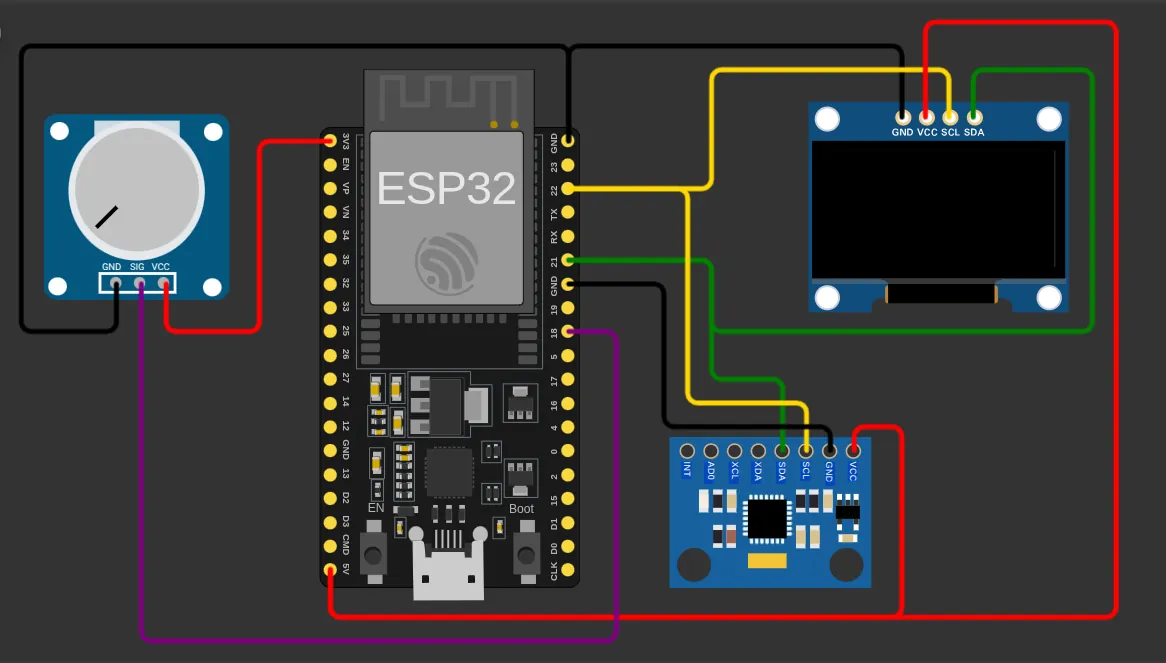
You should connect all the components as above diagram. with correct pins.
MPU6050 Wiring:
- SCL ==> 22
- SDA ==> 21
- VCC ==> 5V
- GND ==> Any GND pin in ESP32
OLED Display Wiring:
- SCL ==> 22
- SDA ==> 21
- VCC ==> 5V
- GND ==> Any GND pin in ESP32
Touch Sensor Wiring:
- SIG ==> GPIO 18
- VCC ==> 3V
- GND ==> Any GND pin in ESP32
Setup Arduino IDE with ESP32 and Install Relevant Libraries
Now you should add ESP32 boards to your Arduino IDE because they are not available in Arduino IDE bydefault. I am not going to explain each and every step here because it is really easy to add them with a freely available YouTube tutorial online.
After adding ESP32 boards to your Arduino IDE you can import V_1.6_smooth_animation.ino file or V_1.7_optimized.ino file to your IDE and install required libraries to your IDE easily. Then you can compile the code and upload it in to your ESP32 board via a micro usb cable.(refera a youtube tutorials if face an any difficulties during adding ESP32 boards in to IDE or installing libraries).
Difference Between V_1.6_smooth_animation.ino and V_1.7_optimized.ino
Simply the main difference between V_1.6 vs V_1.7 is code size and animation smoothness.
If you prefer a butter smooth animation but doesn't matter it takes a large amount of your ESP32 flash space you can go with V_1.6 because it has smooth animations. But there is a littlebit space for futher improvements and adding new features.
If you go with V_1.7 you can have a optimized animations for smaller storage compared to the V_1.6. if you go with V_1.7 you will have more memory to do improvements and implement new animations or features. But some animations are not smooth as previous version code. It is upto you. You can try both and decide.
Tools I Used for This Project
- Rive (https://rive.app/) - This web application is used to animate all the animations in this project. You can use this for free to animate your animations.
- image2cpp (https://javl.github.io/image2cpp/) - This web site is use to convert PNG to C++ code or bit maps which are generated from RIVE. This also a free to use.
- Arduino IDE
- Vscode
- Github
- ChatGPT
- Perplexity
- DeepSeek
I get a lot of help form AI tools to generate this complex code and fix bugs and errors.
Sources I Used for This Project
I used YouTube tutorials and several websites for understand basics of these electronics.
- https://wokwi.com/
- https://www.espressif.com/en
- https://randomnerdtutorials.com/
- https://www.youtube.com/@upir_upir
- Kavishka Dulshan