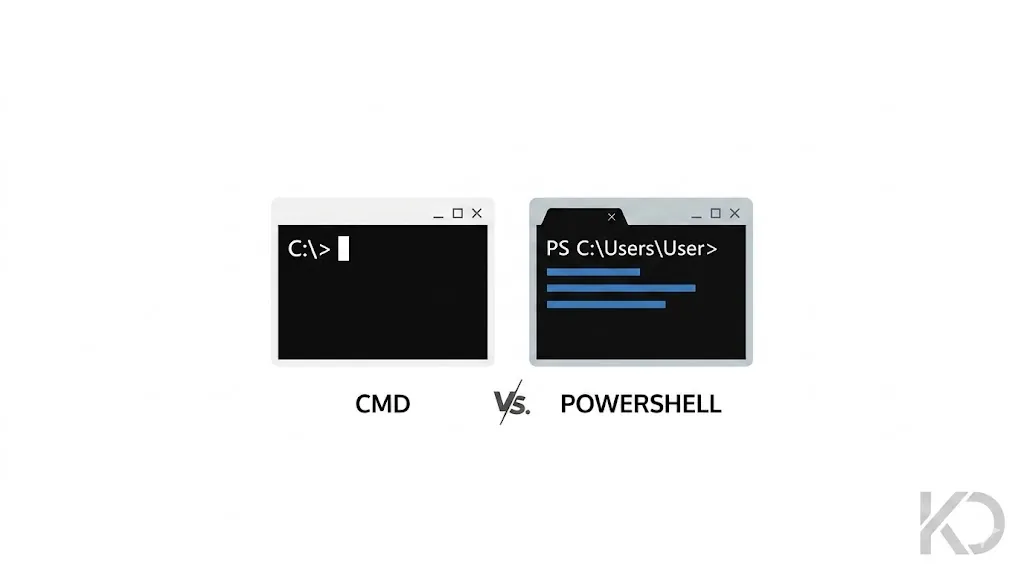
CMD vs. PowerShell: What’s the Real Difference?
If you have ever needed to fix a network issue, flush your DNS, or run a quick script in Windows, you have likely opened a text-based, black-or-blue terminal window. To the untrained eye, the traditional Command Prompt (CMD) and the modern PowerShell environment look remarkably similar. However, under the hood, they belong to entirely different technological eras.
Understanding the core architectural differences between these two environments is essential for developers, system administrators, and tech enthusiasts alike. Let's break down how they work, how they process data, and when you should use each.
The Core Paradigm Shift: Text vs. Objects
The absolute biggest technical shift between the two utilities lies in how they handle data. While both interfaces accept text inputs from your keyboard, the underlying engine treats data in profoundly distinct ways.
The Core Rule: Command Prompt is entirely string-based (text), whereas PowerShell is fully object-oriented, utilizing Microsoft’s powerful .NET framework.
1. Command Prompt (CMD): The Text-Based Legacy
CMD is a direct evolutionary descendant of MS-DOS, introduced back with Windows NT. Because it is strictly text-based, any command you run outputs raw blocks of characters. If you need to take the output of one command and use it in another (a process known as piping), you are forced to parse raw strings using complex string filtering mechanisms. It is rigid, limiting, and fragile.
2. PowerShell: The Object-Oriented Framework
Released in 2006 to address the limitations of CMD, PowerShell doesn't see output as random letters on a screen. Instead, it processes data as structured objects. When you ask PowerShell for a list of files, it creates a collection of distinct data entries, each carrying structural properties like Name, Length (size), and LastWriteTime. This allows you to filter, sort, or route data effortlessly without complex text slicing.
Feature Head-to-Head Comparison
| Feature | Command Prompt (CMD) | PowerShell |
|---|---|---|
| Origin & Age | Legacy evolution of MS-DOS (Windows NT era). | Modern system automation framework (2006+). |
| Data Engine | Raw Text Strings. | Structured .NET Objects. |
| Command Syntax | Rigid, discrete utilities (e.g., dir, ipconfig). | Structured, uniform Verb-Noun cmdlets. |
| Scope & Access | Basic file system navigation and local execution. | Deep system APIs, Registry, WMI, Active Directory, and Cloud. |
Cmdlets and Built-in Aliases
PowerShell introduces built-in commands known as cmdlets (pronounced command-lets). These cmdlets follow a highly predictable naming convention: a verb indicating the action, followed by a noun indicating the target. Examples include Get-Service, Stop-Process, or New-Item.
To ease the transition for legacy users, Microsoft built aliases directly into PowerShell. If you type the old command dir or the Linux terminal command ls into PowerShell, it won't fail. PowerShell intelligently maps those inputs behind the scenes to run its native, object-driven cmdlet: Get-ChildItem.
Scripting in Practice: A Practical Example
To truly appreciate the operational differences, look at how both shells handle a simple task: finding all running processes using more than 100MB of memory and stopping them.
The Complex CMD Batch Approach
In a traditional batch script, you have to parse text tables outputted by the task manager utility using token delimiters:
:: A complex and brittle approach using text parsing loops
FOR /F "tokens=1,2,5 delims= " %%A IN ('tasklist') DO (
    :: Complex string-to-integer conversion logic required here...
)
The Clean PowerShell Approach
Because PowerShell handles objects, you can pipe data cleanly, applying a natural readable filter instantly:
PowerShell
# Elements pass through the pipeline as native objects
Get-Process | Where-Object {$_.WorkingSet -gt 100MB} | Stop-Process
Which One Should You Choose?
While both environments co-exist inside modern Windows operating systems, choosing the correct one depends entirely on your immediate objective:
- Choose Command Prompt (CMD) if you are troubleshooting a legacy machine, working on basic networking diagnostic commands (like a rapid ping or tracert), or executing pre-existing .bat batch files.
- Choose PowerShell for modern workflows, advanced scripting, infrastructure automation, DevOps tools, interacting with cloud containers, or performing deep system administration configurations.
The Verdict
CMD remains a lightweight utility for quick tasks, but PowerShell is the definitive automation powerhouse. For anyone serious about managing modern Windows environments, mastering PowerShell is no longer optional - it is a core prerequisite.
Kavishka Dulshan