How to Use a Raspberry Pi as a WiFi Access Point (English)
In a recent project, I needed to use a Raspberry Pi as a WiFi access point. I thought it would be useful to share the process so anyone can set this up easily.
First, you need to select the appropriate Raspberry Pi OS for your specific model and write it to an SD card. I won't go into those basic setup details here.
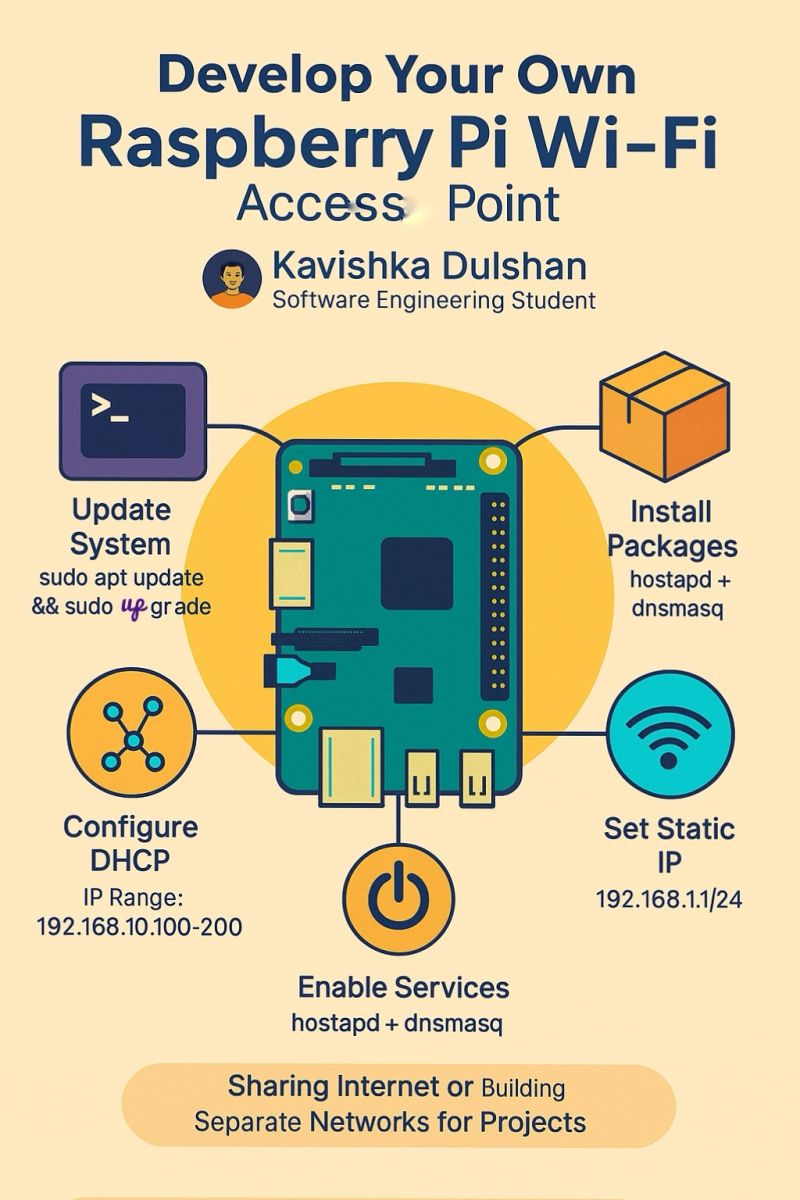
Once your Pi is powered on, the main task is to install and configure two specific packages: dnsmasq and hostapd. After installation, we will configure them to handle DHCP requests and manage the wireless access point functionality.
To ensure the access point is always available, we will set these up as services that run automatically at boot. This removes the need to manually run commands or connect a display every time the device starts.
Below is the step-by-step technical guide to complete the configuration.
Step-by-Step Guide: Raspberry Pi as WiFi Access Point
Architecture: PC (WiFi) ↔ Raspberry Pi (AP)
Phase 1: System Preparation
1. Update the System
Ensure all local packages are up to date before starting the installation.
sudo apt update && sudo apt upgrade -y
2. Install Required Packages
Install hostapd to create the access point and dnsmasq to manage IP addresses for connected devices.
Bash
sudo apt install hostapd dnsmasq -y
Phase 2: Configuration
3. Configure DHCP (dnsmasq)
Edit the configuration file to define the IP range that the Raspberry Pi will assign to connected devices.
Bash
sudo nano /etc/dnsmasq.conf
Add the following lines to the file:
Code snippet
interface=wlan0
dhcp-range=192.168.10.100,192.168.10.200,255.255.255.0,24h
4. Configure the Access Point (hostapd)
Create the configuration file that defines your WiFi network name (SSID) and password.
Bash
sudo nano /etc/hostapd/hostapd.conf
Insert the following configuration details:
Code snippet
interface=wlan0
driver=nl80211
ssid=Your_AP_Name
hw_mode=g
channel=7
wmm_enabled=0
macaddr_acl=0
auth_algs=1
ignore_broadcast_ssid=0
wpa=2
wpa_passphrase=Your_AP_Password
wpa_key_mgmt=WPA-PSK
wpa_pairwise=TKIP
rsn_pairwise=CCMP
5. Set a Static IP
The Raspberry Pi itself needs a fixed IP address on the wireless interface to function as a gateway.
Bash
sudo nano /etc/dhcpcd.conf
Add this block at the very end of the file:
Code snippet
interface wlan0
static ip_address=192.168.10.1/24
nohook wpa_supplicant
Phase 3: Finalizing
6. Enable Services and Reboot
Finally, unmask and enable the services so they start automatically on every boot.
Bash
sudo systemctl unmask hostapd
sudo systemctl enable hostapd dnsmasq
sudo reboot